User Manual
PDF Toolbox
Your complete guide to 20+ offline PDF tools for iPhone, iPad, and Mac. Merge, compress, sign, OCR, redact, and edit PDFs on your device. Nothing is uploaded.
Getting Started
On iPhone, the app uses three tabs: Documents, Tools, and Settings. iPad and Mac use a sidebar for navigation.
Documents Tab
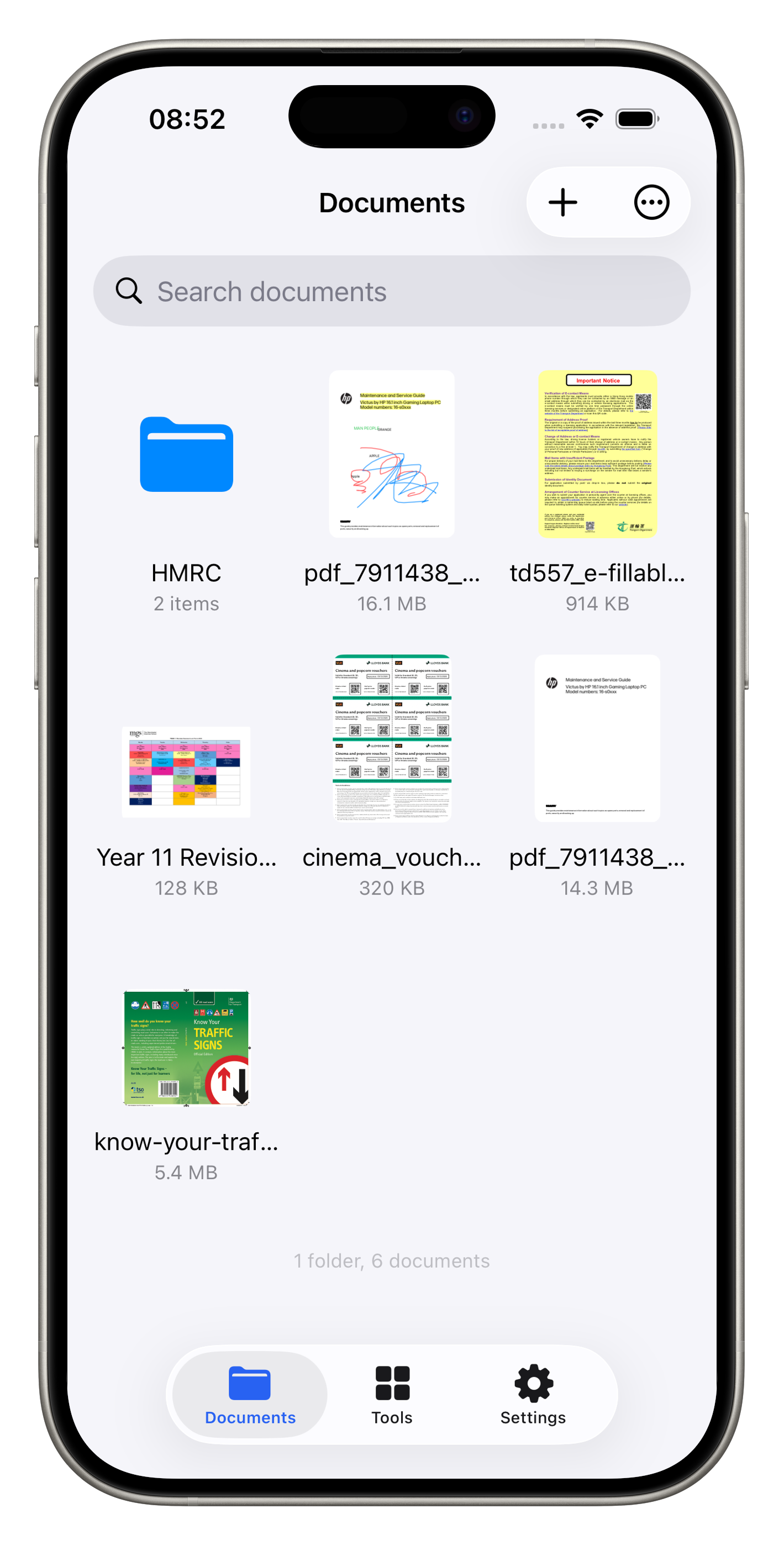
Browse, organize, and manage your PDF files. Create folders, rename files, and open documents in the advanced viewer. Supports importing via the + button or drag-and-drop. Available on iPhone and iPad only.
Tools Tab
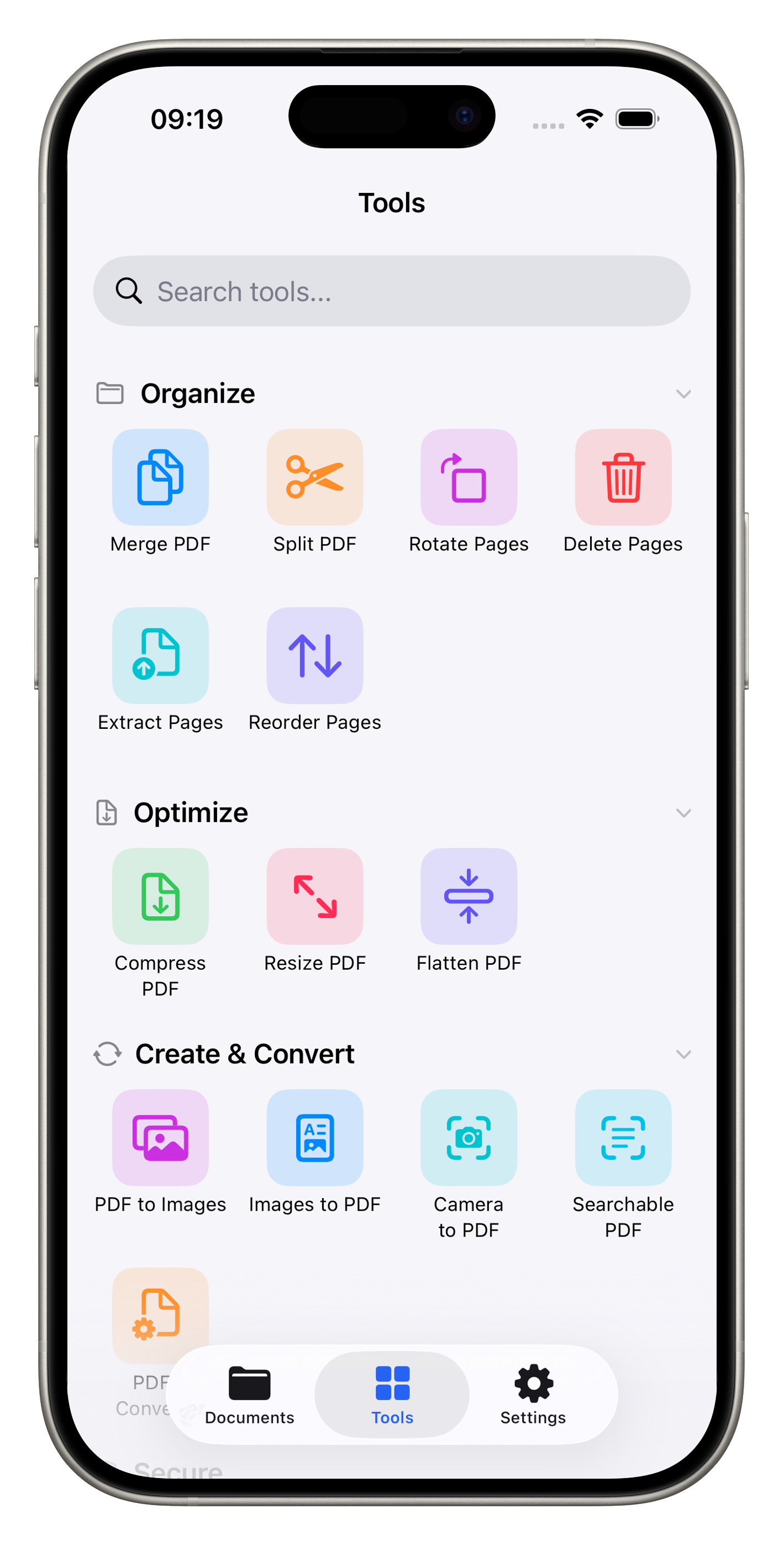
Access all 20+ PDF tools, organized into categories: Organize, Optimize, Create & Convert, Secure, and Edit. Search by name, collapse categories, and on iPhone open Recent Activity from the toolbar to use Run Again.
Settings Tab
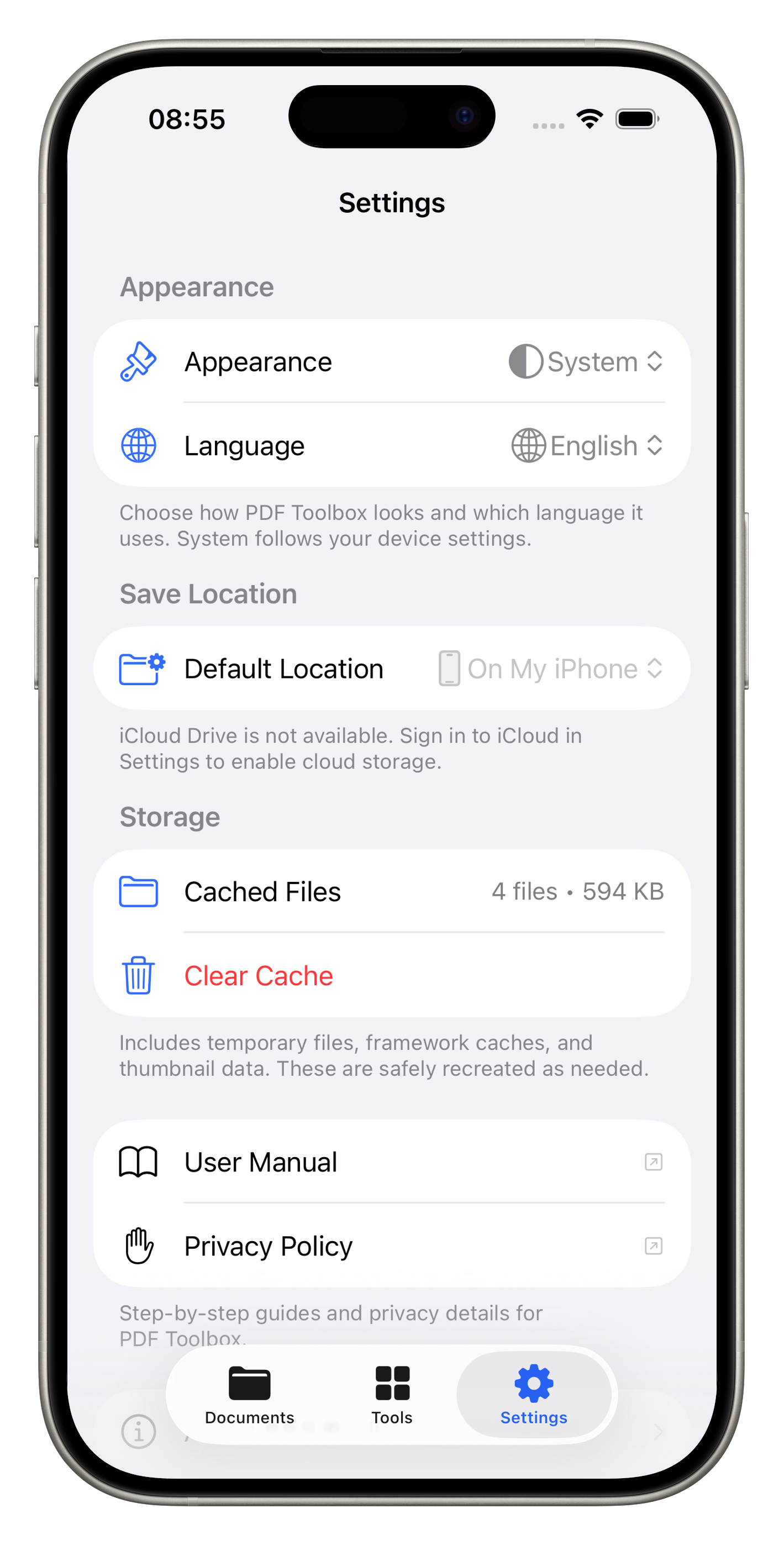
Customize appearance (Light, Dark, or System), choose your language, set your default save location (On My iPhone or iCloud Drive), manage cached files, and view app information.
Managing Documents
The Documents tab is your file manager on iPhone and iPad. Browse, search, organize, and run batch actions. Loading and empty states include direct import shortcuts.
Document Browser
Your documents are displayed in a grid with thumbnail previews, file names, and file sizes. Folders show item counts.
- Import files - Tap the + button to import PDFs from Files, Photos, or other apps
- Search - Use the search bar to find documents by name
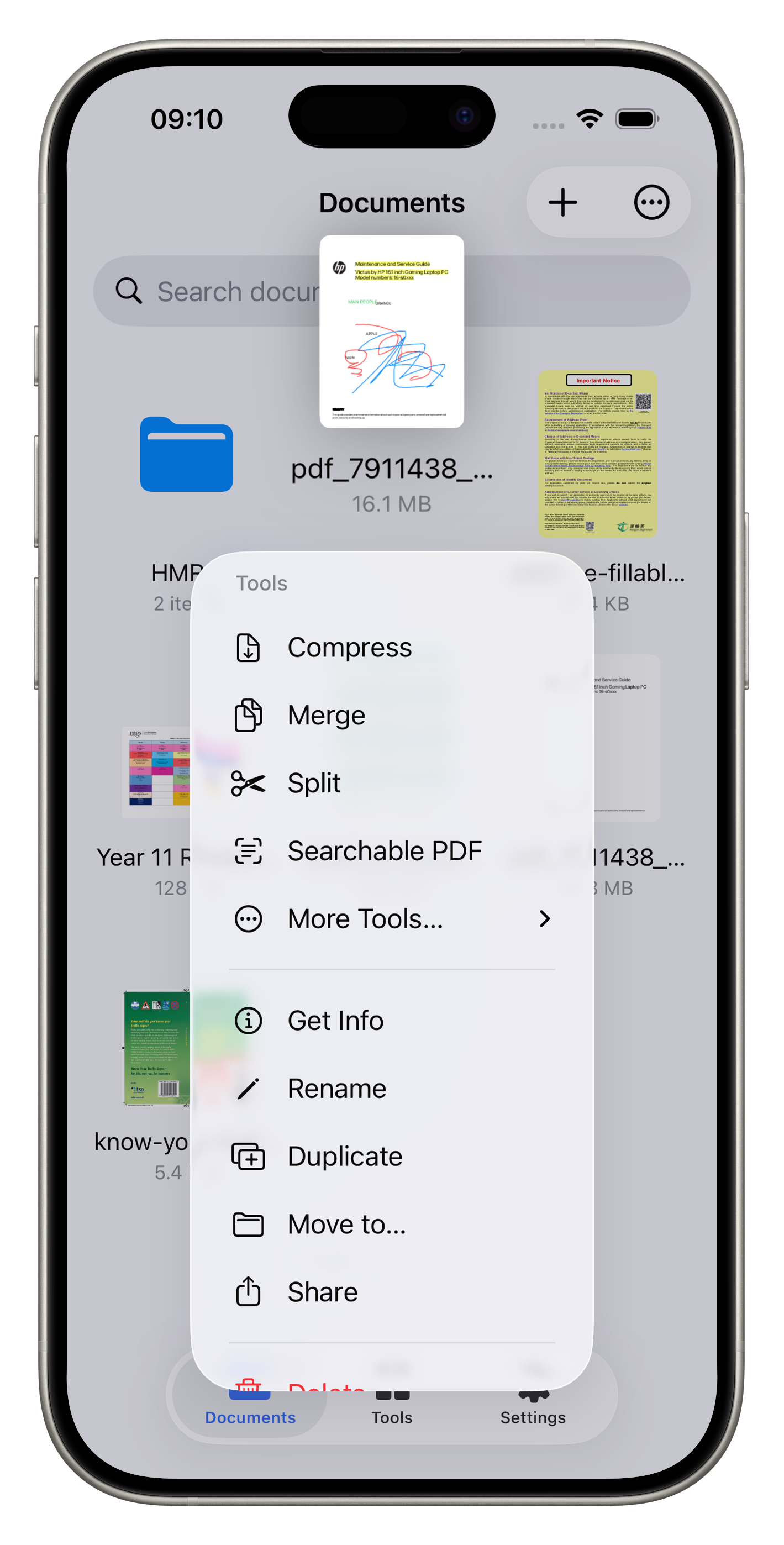
- Context menu - Long-press any file for quick actions: rename, duplicate, move, delete, or apply tools directly
- Multi-select - Tap the ⋯ menu, then Select for batch delete, move, or share. VoiceOver announces how many files are selected
- Status badges - Locked, protected, and PDF/A files show corner badges on thumbnails in grid and list view
- Folders - Create folders to organize your documents
Import & Create
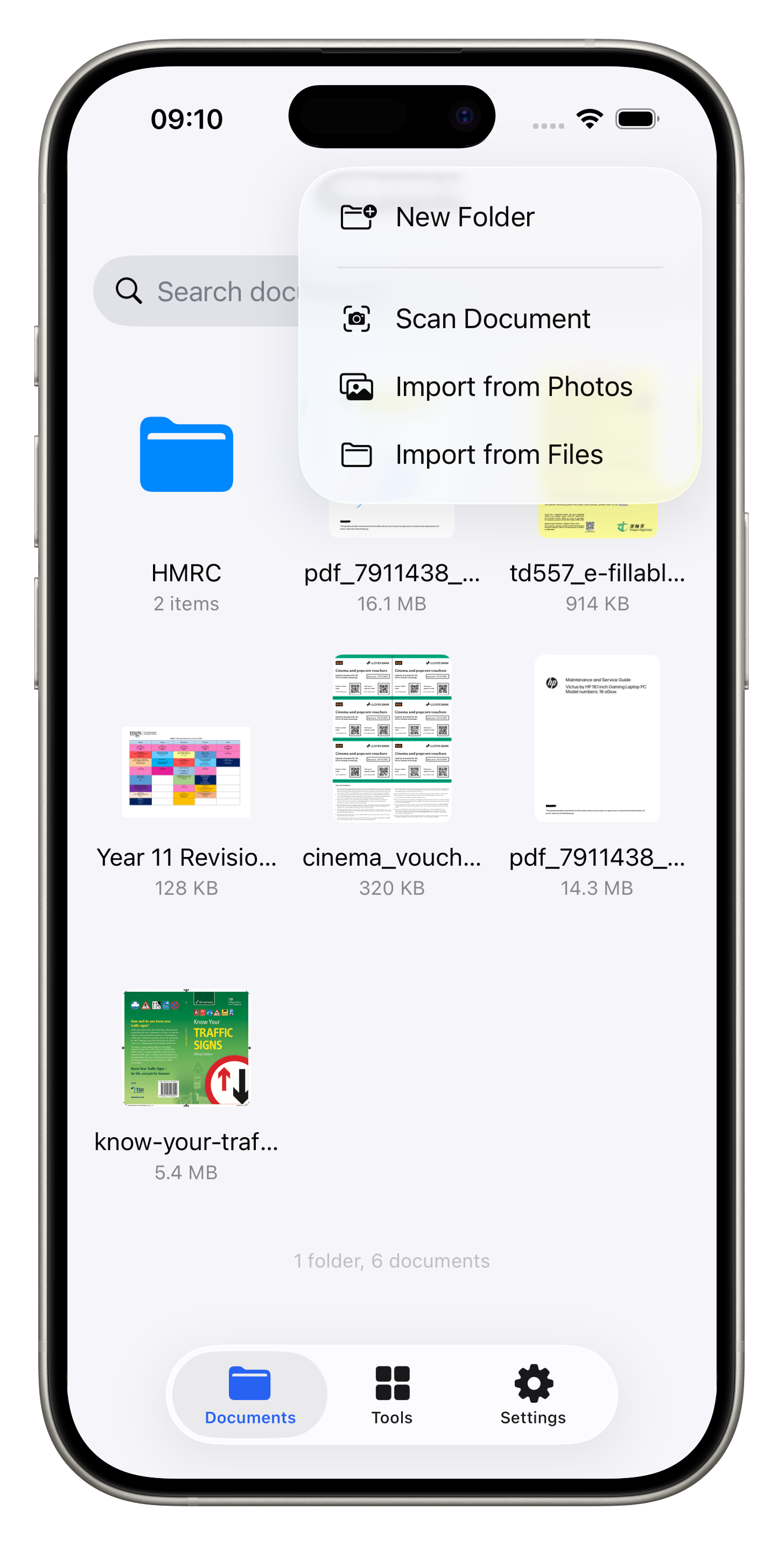
Tap the + button in the top-right corner to access import options:
- New Folder - Create a folder to organize your documents
- Scan Document - Use your camera to scan paper documents into PDF
- Import from Photos - Select images from your photo library to convert to PDF
- Import from Files - Browse and import PDFs from the Files app or other locations
Quick Actions
Long-press any document to open the context menu with quick access to common actions:
- Tools - Apply Compress, Merge, Split, Searchable PDF, or access more tools directly without switching tabs
- Get Info - View file details such as size, page count, and metadata
- Rename - Change the file name
- Duplicate - Create a copy of the document
- Move to… - Move the file to a different folder
- Share - Share the PDF via AirDrop, Mail, Messages, or other apps
- Delete - Remove the document permanently
Advanced PDF Viewer
Tap any PDF to open it in the full-featured viewer with thumbnail navigation and editing tools. Available on iPhone and iPad only.
Read & Navigate
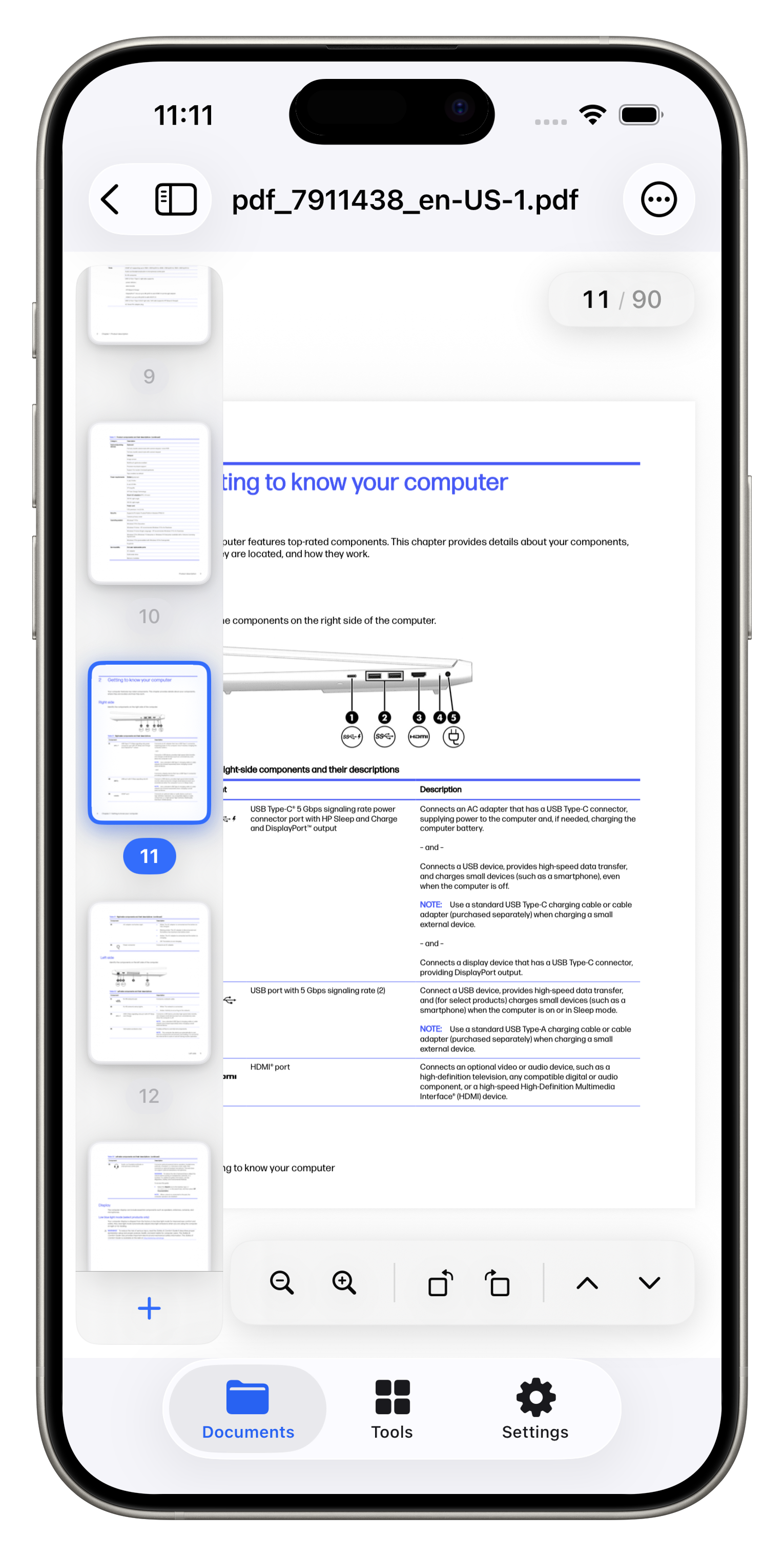
The viewer shows your document with a scrollable thumbnail sidebar on the left for quick page navigation.
- Page indicator - Shows current page number and total pages (e.g., "11 / 90")
- Thumbnail sidebar - Tap any thumbnail to jump to that page. The current page is highlighted
- Zoom controls - Pinch to zoom or use the zoom buttons in the toolbar
- Page navigation - Use the up/down arrows to move between pages
- Reading position - Your last-viewed page is remembered during the session
- Search - Tap the magnifying glass to find text in the document. Move between matches with the on-screen controls
- Print - Open the ⋯ menu and choose Print to send the open document to a printer
- Zoom readout - On iPhone, the zoom percentage appears in the floating toolbar while you pinch or use zoom buttons
- Save feedback - Save is disabled while a save is in progress so you do not double-tap
Fill Forms
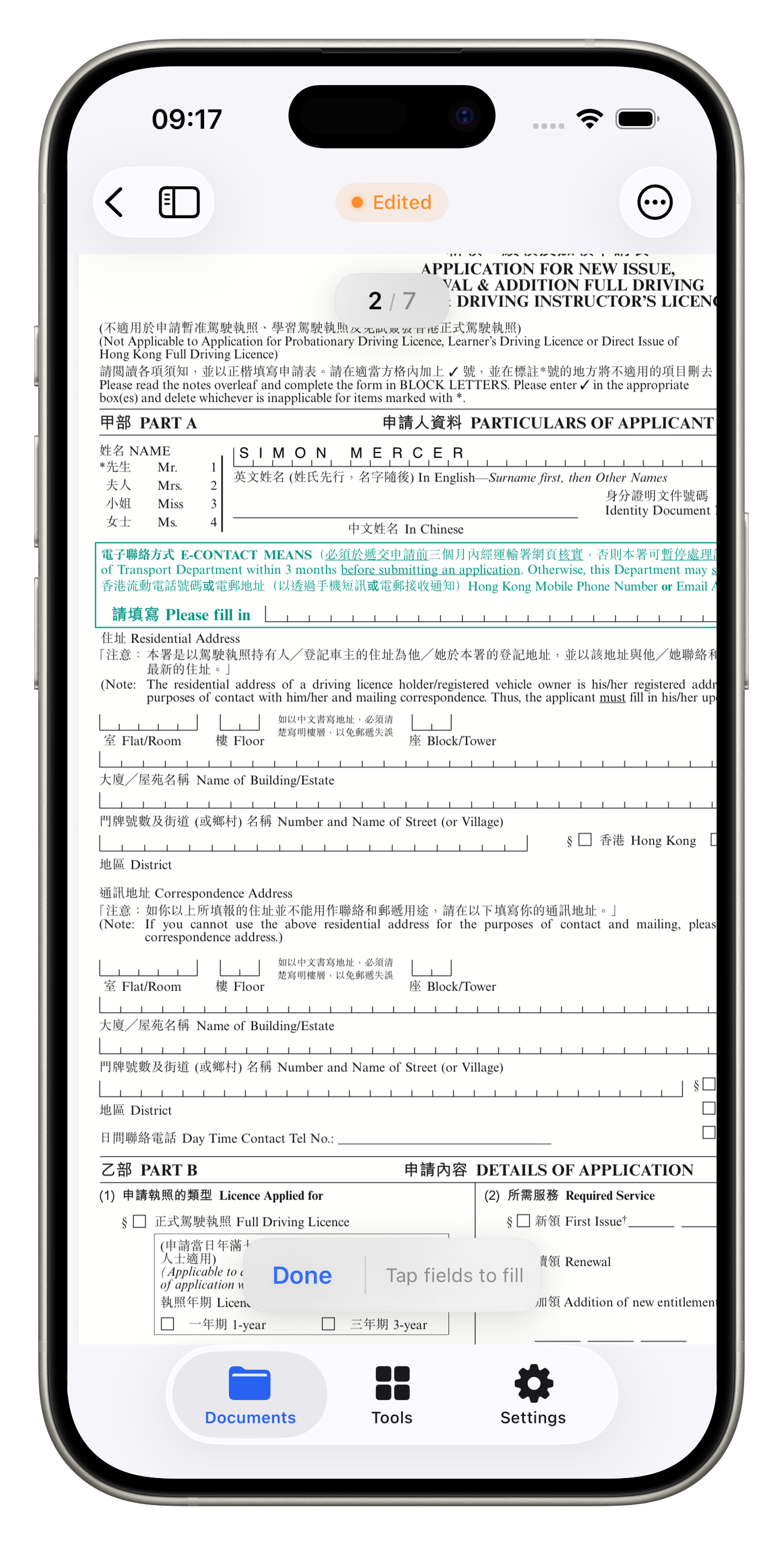
Open any PDF with interactive form fields and the form filling toolbar appears automatically at the bottom of the screen.
- Text fields - Tap any text field to type directly into it
- Checkboxes - Tap to check or uncheck form boxes
- Done button - Tap Done when finished to save your changes
- Edited indicator - An orange "Edited" badge shows unsaved changes
All form data stays in the PDF. Save or share the filled document when you are done.
Annotate / Redact
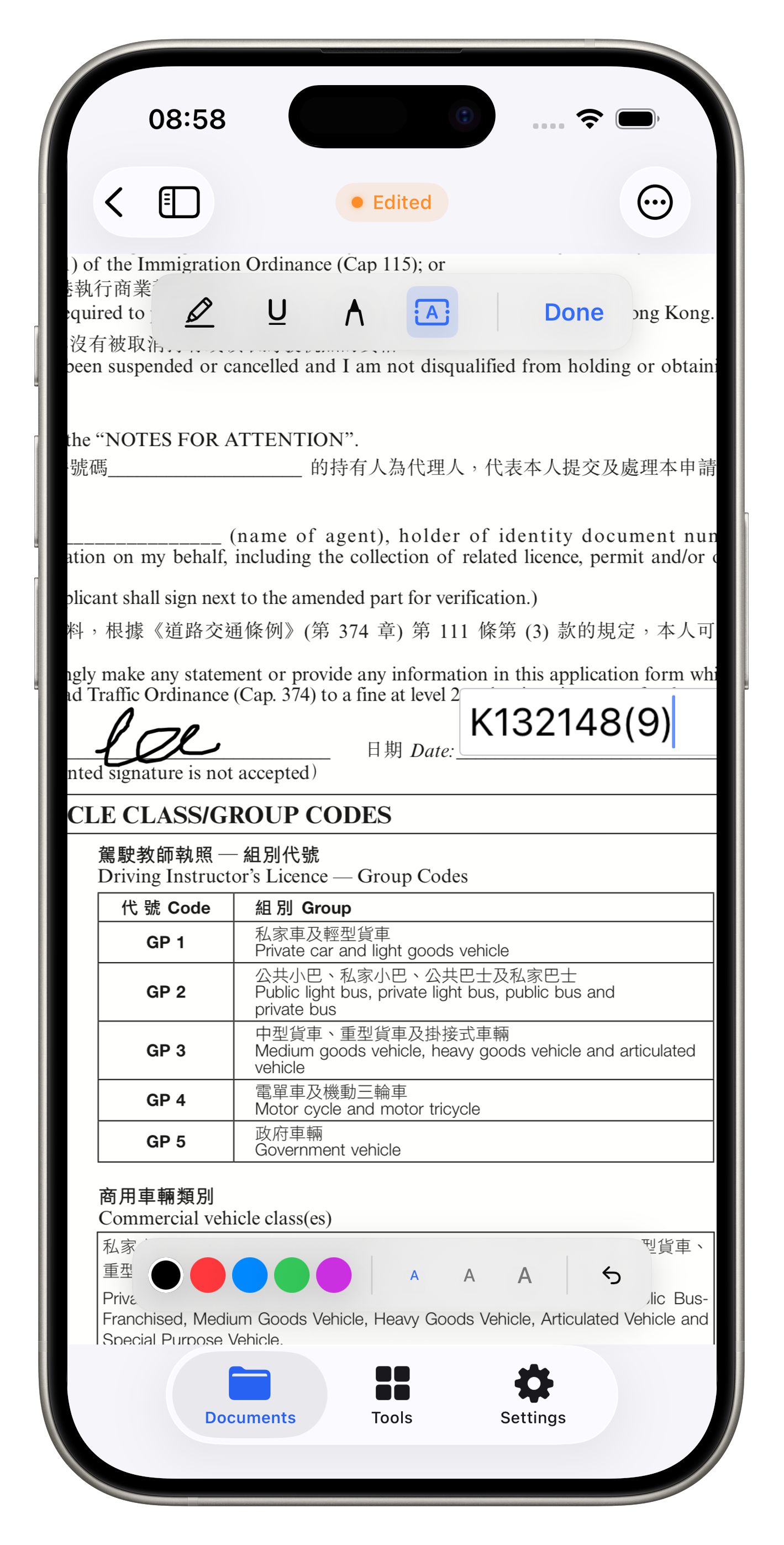
Open ⋯ → Annotate / Redact. The toolbar includes five tools:
- Draw - Freehand drawing with your finger or Apple Pencil
- Underline - Select text and apply underline annotations
- Highlight - Select text and apply color highlights
- Text - Add text annotations anywhere on the page
- Redact - Long-press to select text, tap Apply redact, then save to permanently remove the marked content
Customize ink color and line width from the color palette. Tap Done to finish and save your changes.
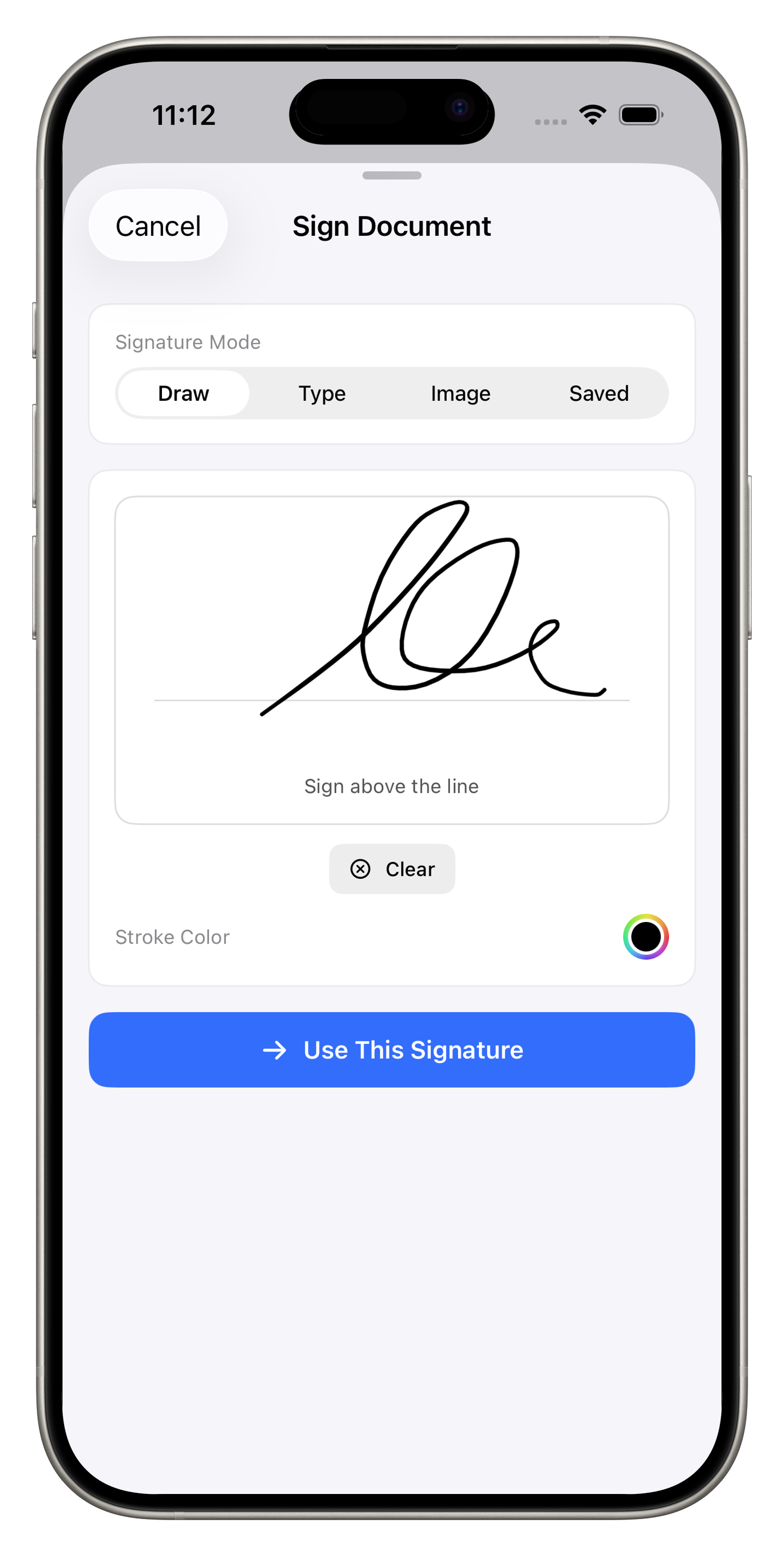
Sign
Add your signature to any PDF in two steps. First, create your signature using one of four modes:
- Draw - Sign with your finger or Apple Pencil directly on the canvas
- Type - Type your name and choose from multiple handwriting-style fonts
- Image - Import a signature image from your photo library
- Saved - Reuse a previously saved signature
You can customize the stroke color and clear to start over.
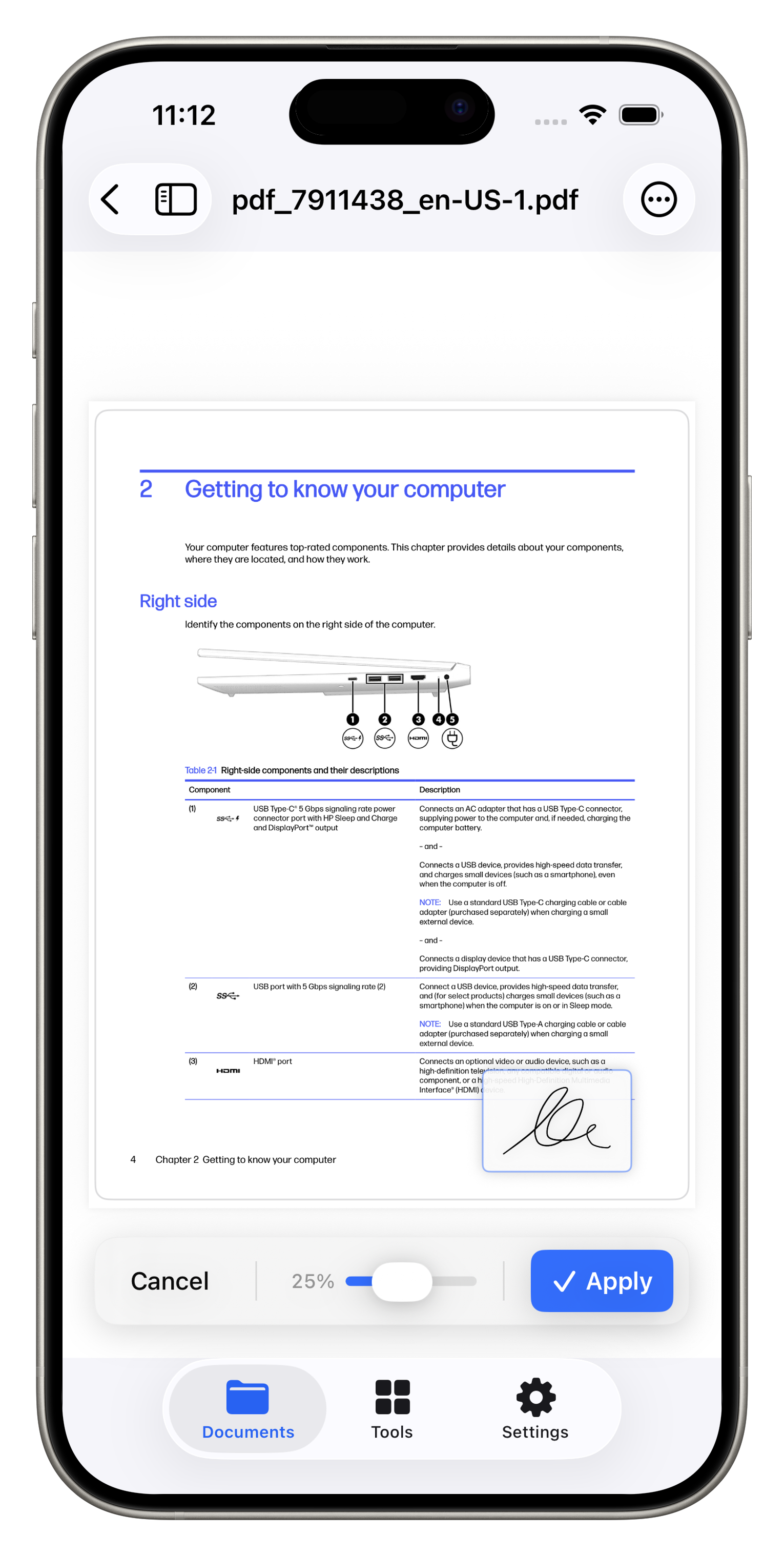
Then, position your signature on the document page. Drag to move, pinch to resize, and use the opacity slider to adjust transparency. Tap Apply to permanently embed the signature into the PDF.
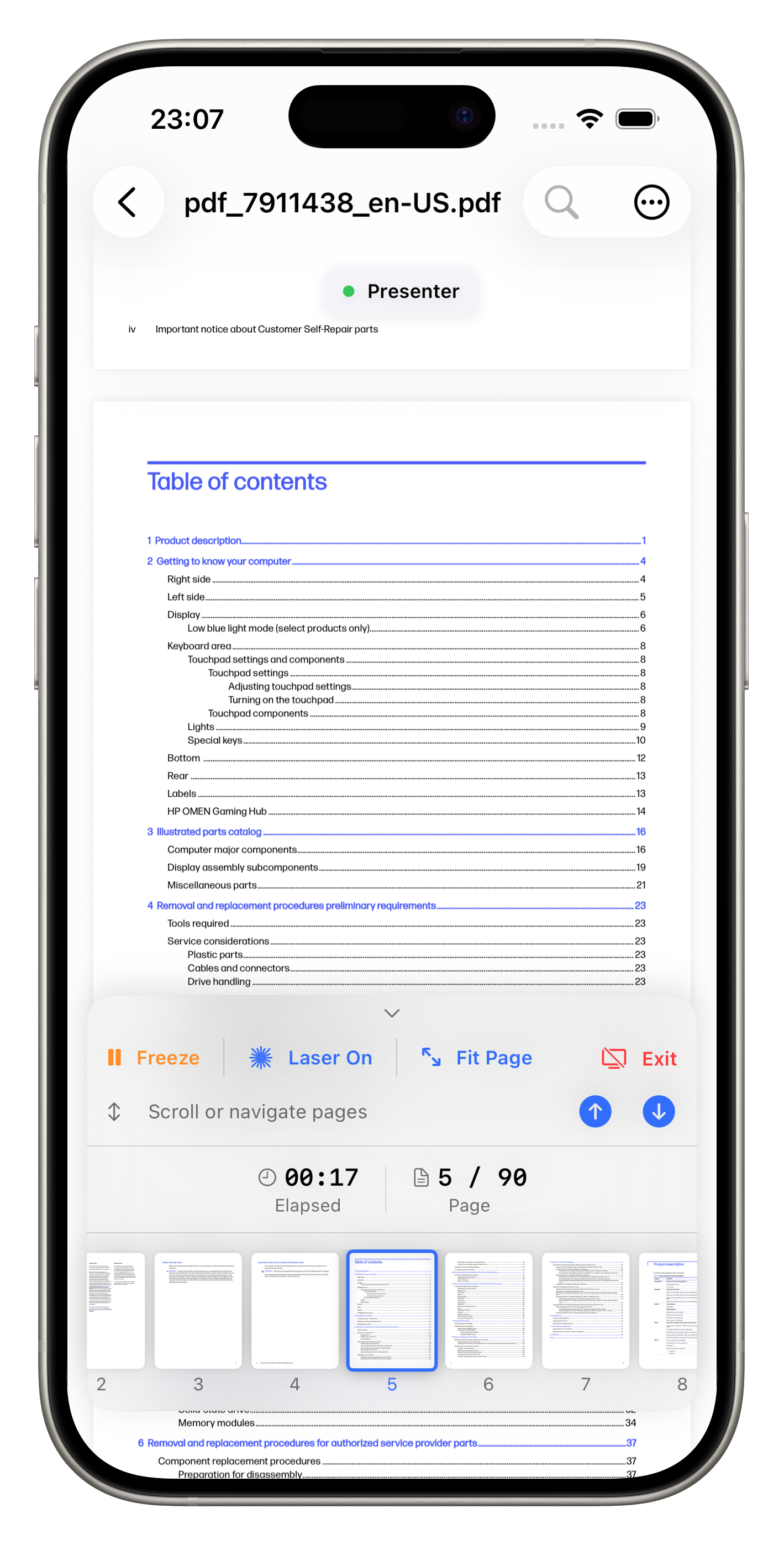
Presenter Mode
Display your PDF on an external screen with a clean, audience-facing view. Connect via AirPlay or a USB-C/HDMI adapter, then open a PDF and tap ⋯ → Enter Presenter.
- Page navigation - Use the up/down arrows to move between pages, or tap any thumbnail to jump directly
- Freeze - Pause the external display while you prepare the next content
- Laser pointer - Touch your screen to show a red dot on the external display
- Fit Page / Fit Width - Toggle between full-page and fit-width zoom modes. In fit-width mode, scroll buttons navigate within and between pages
- Session timer - Track elapsed time and current page position
- Keyboard shortcuts - Use ← → for pages, ⌥↑ ⌥↓ for scrolling, ⌥F to freeze, and Esc to exit
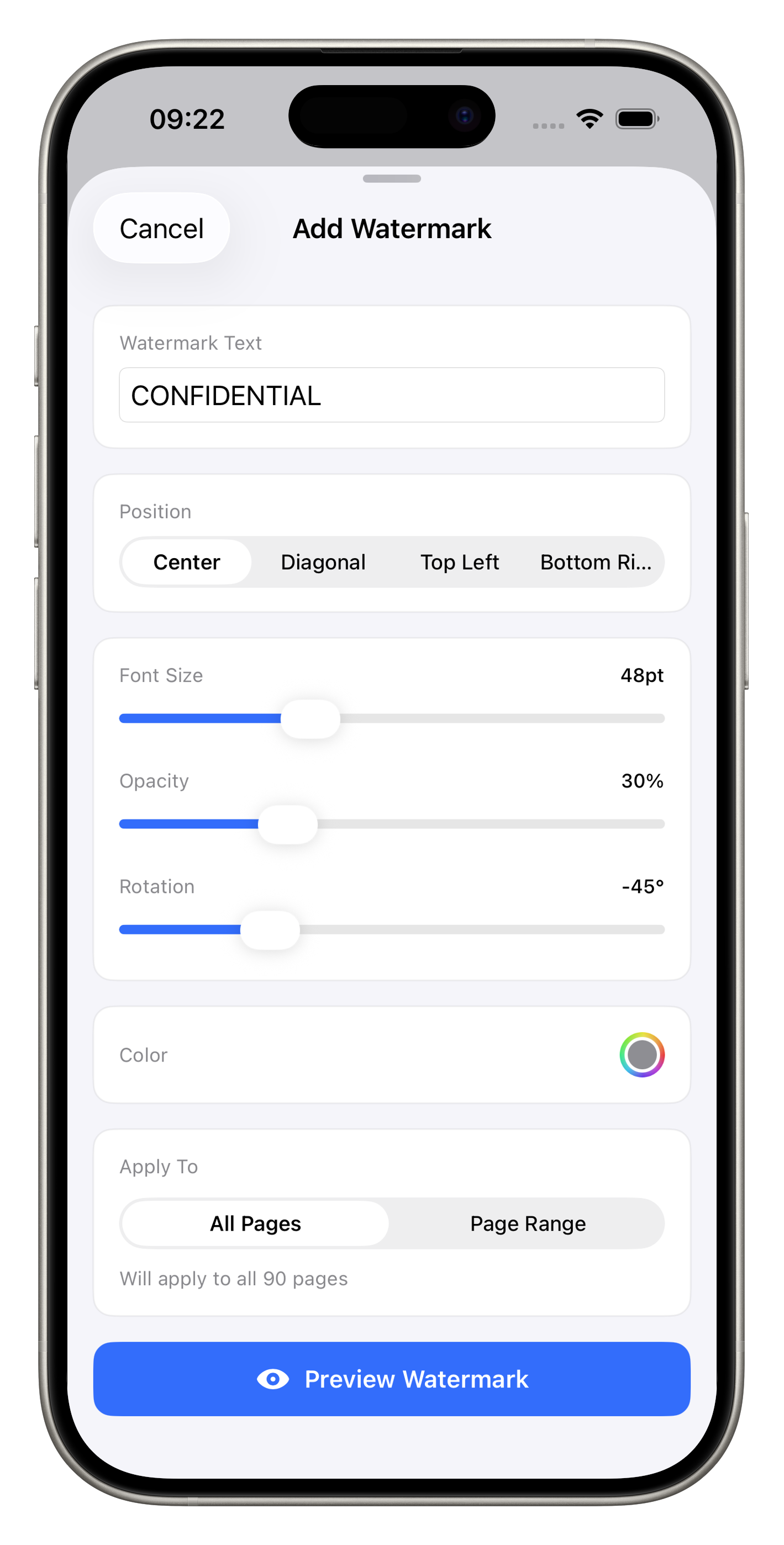
Add Watermark
Overlay text watermarks on your PDF pages with full customization:
- Watermark Text - Enter any text such as "CONFIDENTIAL", "DRAFT", or "COPY"
- Position - Choose Center, Diagonal, Top Left, or Bottom Right placement
- Font Size - Adjust the text size with the slider
- Opacity - Control transparency so content remains readable beneath
- Rotation - Set the angle of the watermark text
- Color - Pick any watermark color
- Apply To - Apply to all pages or a specific page range
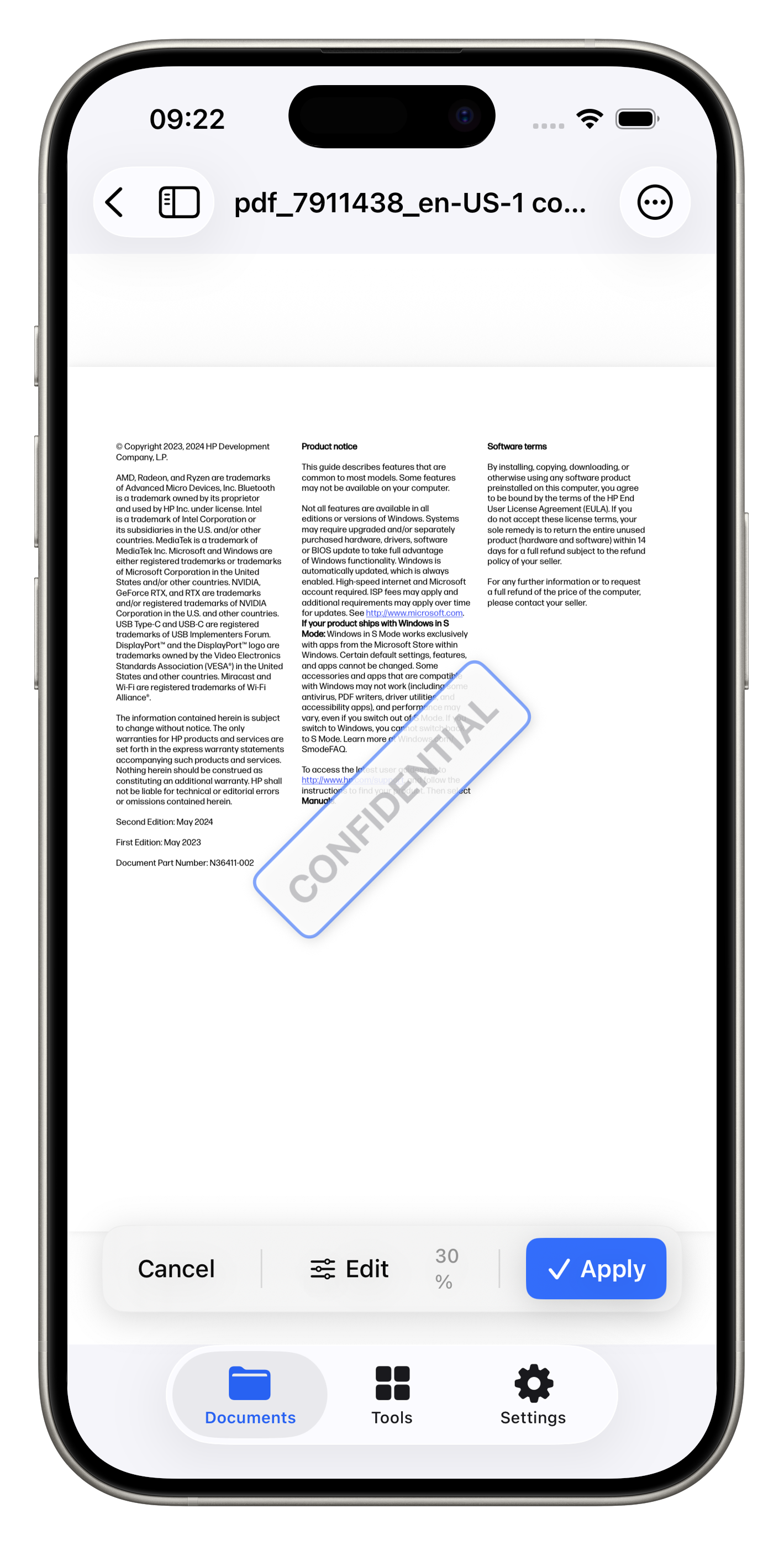
Tap Preview Watermark to see exactly how it looks on your document before applying. Use the Edit button to go back and adjust settings, or tap Apply to permanently embed the watermark into the PDF.
PDF Tools
All 20+ tools are available from the Tools tab. Each tool follows a consistent workflow: select a file, configure options, and process.
How to Use Any Tool
Open the tool
Go to the Tools tab and tap the tool you need. Search by name. On iPhone, tap Recent Activity in the toolbar to reopen a recent run.
Select your PDF
Tap "Select PDF" to choose a file from your documents. Some tools accept multiple files (e.g., Merge, Images to PDF).
Configure settings
Adjust tool-specific options such as page range, compression level, watermark text, or signature style.
Process & save
Tap the action button to process. The result is saved to your chosen save location and can be shared immediately.
Complete Tool Reference
A detailed guide to every tool in PDF Toolbox, organized by category.
📁 Organize
| Tool | Description |
|---|---|
| Merge PDF | Combine multiple PDFs into a single document. Use the drag handles to reorder files before merging. |
| Split PDF | Divide a PDF into multiple documents by page ranges, individual pages, or equal parts. |
| Rotate Pages | Rotate selected pages by 90°, 180°, or 270°. Apply to individual pages or all pages at once. |
| Delete Pages | Remove specific pages from a PDF. Preview pages before deletion to avoid mistakes. |
| Extract Pages | Extract a range of pages into a new PDF document. |
| Reorder Pages | Rearrange pages via drag-and-drop with thumbnail previews. |
⚡ Optimize
| Tool | Description |
|---|---|
| Compress PDF | Reduce file size with four quality levels (Low, Medium, High, Maximum). Shows before/after size comparison with savings percentage. |
| Resize PDF | Change page dimensions to standard sizes (A4, Letter, etc.) or custom dimensions. |
| Flatten PDF | Permanently bake annotations, form fields, and interactive elements into the page content. |
| Repair PDF | Diagnose and fix damaged or corrupted PDFs. Repairs missing EOF markers, destroyed cross-reference tables, missing trailers, invalid document roots, broken stream lengths, page render failures, inline image issues, and duplicate objects. |
🔄 Create & Convert
| Tool | Description |
|---|---|
| PDF to Images | Convert PDF pages to PNG or JPEG images. Choose individual pages or export all pages. |
| Images to PDF | Create a PDF from multiple images. Reorder images before conversion. |
| Camera to PDF | Scan physical documents using your device camera. Automatically detects page edges and creates multi-page PDFs. |
| Searchable PDF (OCR) | Make scanned PDFs searchable using on-device text recognition. Supports auto-detect or manual language selection with Fast and Accurate modes. |
| PDF/A Converter | Convert PDFs to the PDF/A-1b archival format (ISO 19005-1). Analyzes embedded fonts and conformance level before conversion. |
🔐 Secure
| Tool | Description |
|---|---|
| Unlock PDF | Remove password protection from a PDF. Requires the current password to unlock. |
| Protect PDF | Add password encryption to a PDF with configurable permission controls (printing, copying, editing). |
| Redact PDF | Scan for sensitive data (emails, phone numbers, IDs, custom keywords), review each finding, and permanently destroy it. Redacted pages are re-rendered so the hidden text cannot be recovered. |
| Edit Metadata | View and modify document properties: title, author, subject, keywords, creator, and producer. |
| Remove Metadata | Strip all metadata from a PDF for privacy. Removes title, author, keywords, and all other properties. |
✏️ Edit
| Tool | Description |
|---|---|
| Add Page Numbers | Insert page numbers with customizable format, position, font, and starting number. |
📖 Advanced PDF Viewer
| Feature | Description |
|---|---|
| Sign PDF | Add signatures via drawing, typed text, or image import. Place and resize the signature on any page. |
| Fill Forms | Tap interactive form fields to fill them in directly. Supports text fields, checkboxes, and other standard PDF form elements. |
| Annotate / Redact | Mark up PDFs with drawing, highlighting, underlining, and text. Select text and mark it for redaction, then save to apply. |
| Add Watermark | Overlay text watermarks on PDF pages. Customize text, position, font size, opacity, rotation, and color. |
| Presenter Mode | Display your PDF on an external screen via AirPlay or wired adapter. Navigate pages, freeze the display, use a laser pointer, and toggle fit-page or fit-width modes from your iPhone. |
OCR & Searchable PDF
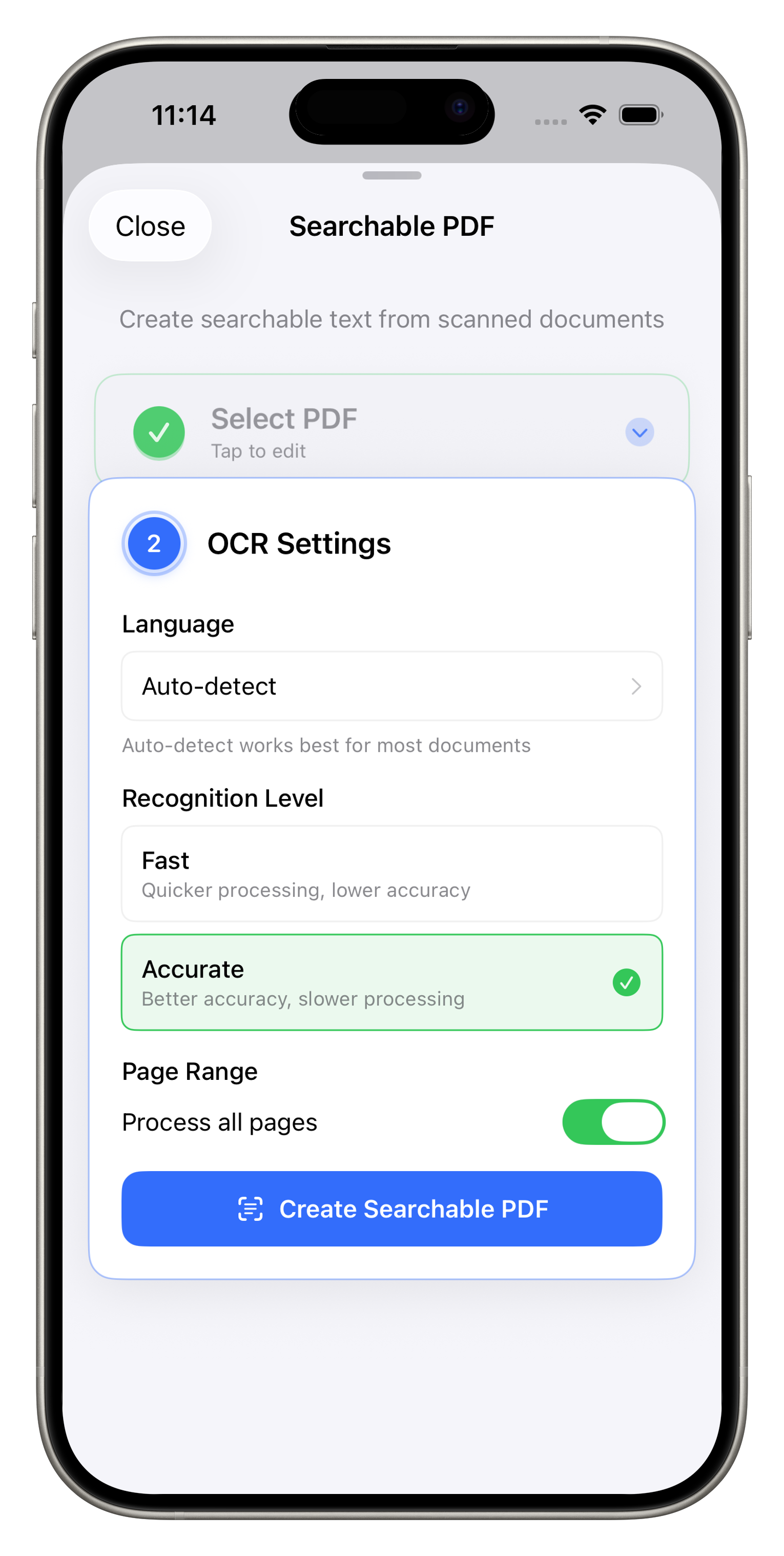
Turn scanned documents into searchable, selectable text using Apple's on-device Vision framework.
Text Recognition Settings
- Language - Choose Auto-detect for most documents, or pick languages manually
- Recognition Level - Fast for speed, Accurate for harder scans
- Scanned Document - Turn on preprocessing for camera scans and low-quality pages
- Scan Resolution - Standard or High when Scanned Document is on (also used by Flatten OCR)
- Page Range - Process all pages or a selected range (context tool)
Recognition runs on your device. No file leaves the app.
Flatten PDF
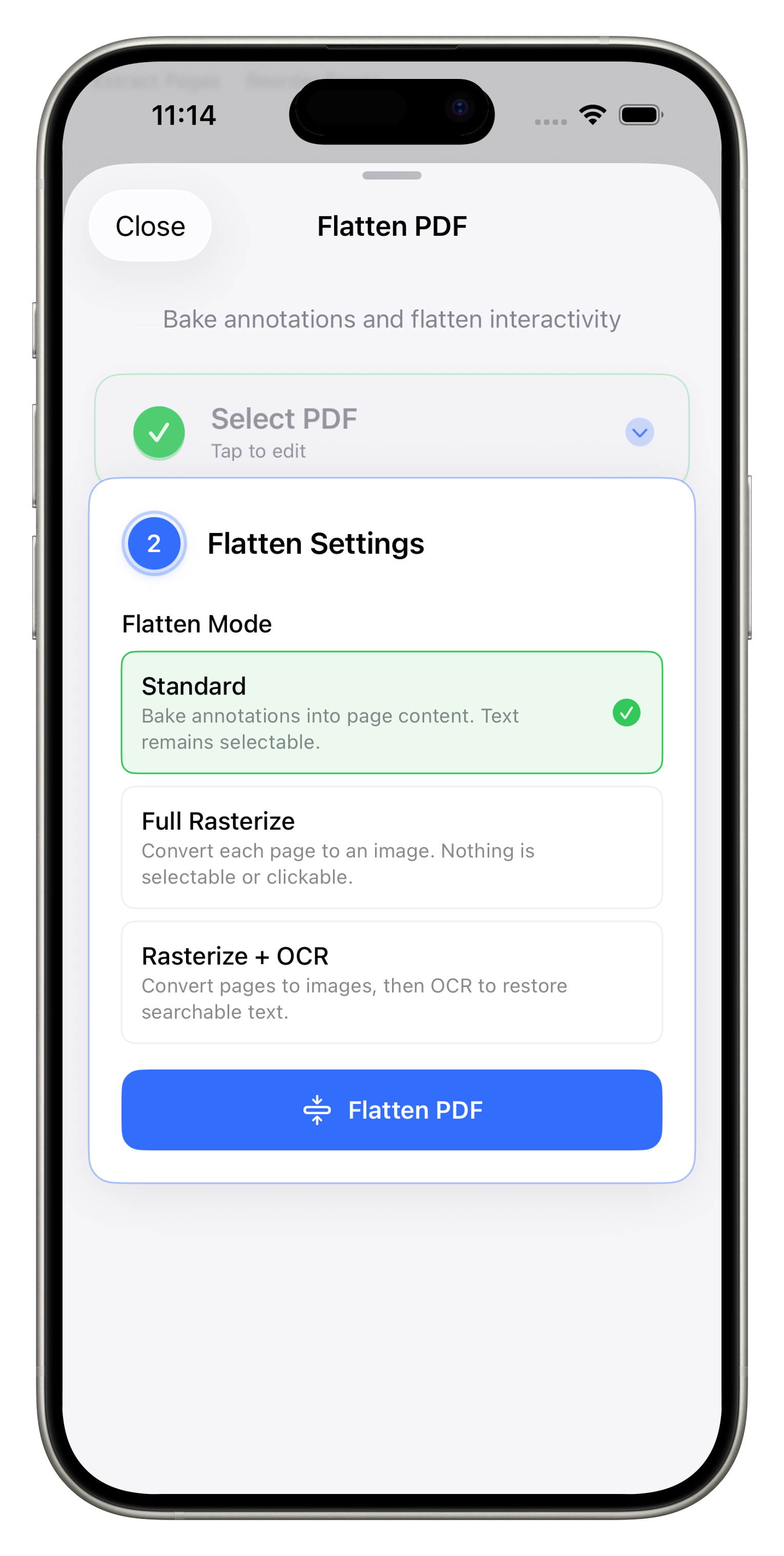
Permanently bake annotations, form fields, and interactive elements into the page content.
Flatten Modes
Choose the flatten mode that best suits your needs:
- Standard - Bake annotations into page content while keeping text selectable and searchable
- Full Rasterize - Convert each page to an image. Nothing remains selectable or clickable - ideal for locking down content completely
- Rasterize + OCR - Convert pages to images, then run OCR to restore searchable text. Combines the security of rasterization with the usability of searchable text
PDF/A Archival Conversion
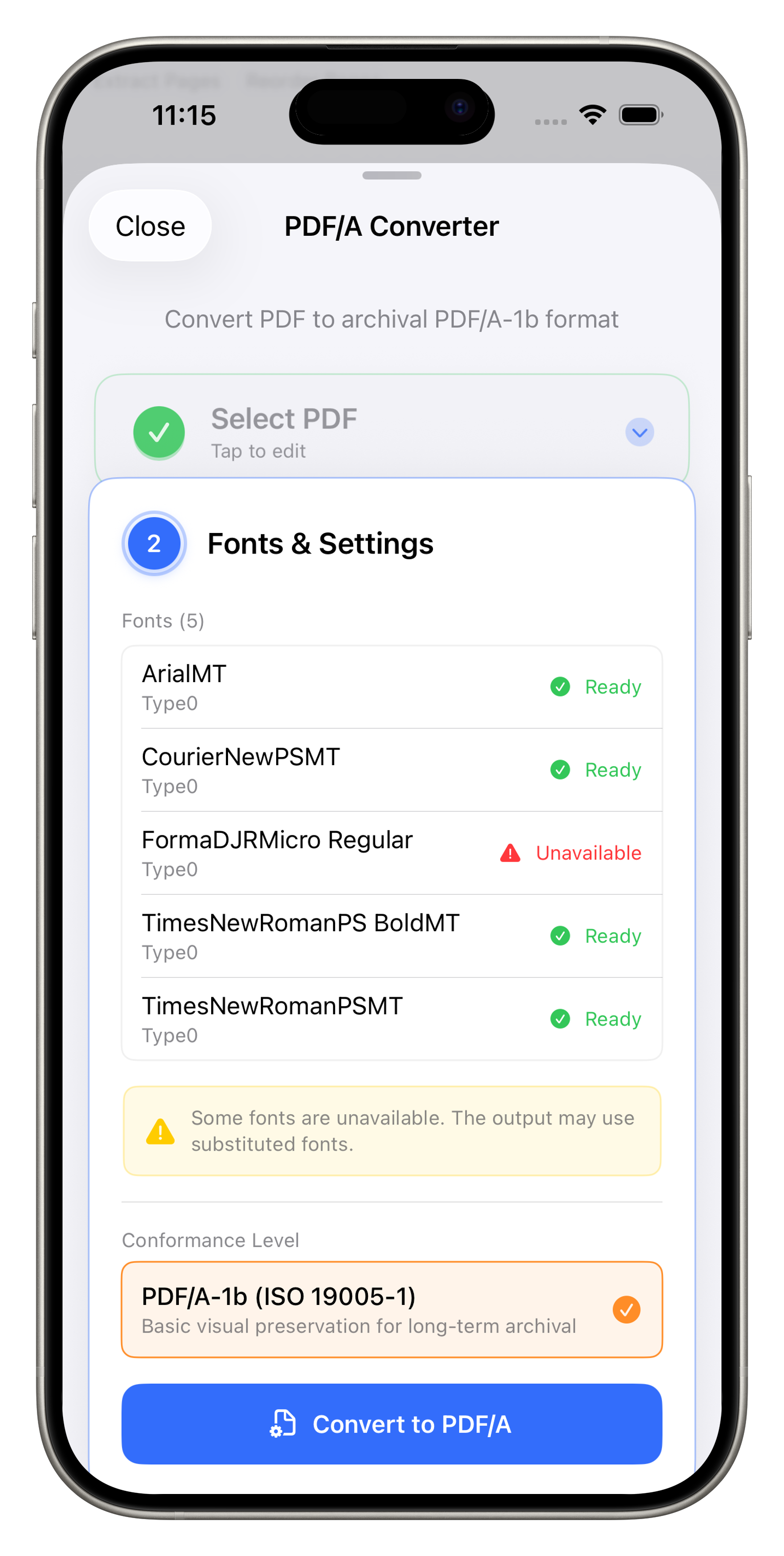
Convert documents to the PDF/A-1b standard for long-term digital preservation.
Font Analysis & Conversion
The PDF/A Converter analyzes all fonts embedded in your document and shows their availability status:
- Ready - Font is available and will be embedded correctly
- Unavailable - Font cannot be found; the output may use substituted fonts
The tool converts to PDF/A-1b (ISO 19005-1), which ensures basic visual preservation for long-term archival. Ideal for legal documents, tax records, and compliance requirements.
Repair PDF
Diagnose and fix damaged or corrupted PDFs with an automated 4-stage repair pipeline.

Diagnosis & Repair
Select a damaged PDF and the tool automatically scans for structural issues. Each problem is classified by severity and described in plain language. Tap Repair to fix all detected issues at once.
The repair engine can detect and fix up to 18 types of PDF damage:
- Missing EOF Marker - The end-of-file marker is missing. It will be appended
- Destroyed Cross-Reference & Trailer - Both the xref table and trailer are destroyed. Object scanning rebuilds them
- Corrupted Cross-Reference Table - The xref table is malformed and will be reconstructed
- Missing Trailer - The trailer dictionary is missing and will be rebuilt
- Missing Document Root - The document catalog reference is invalid and will be restored
- Broken Stream Length - Stream length mismatches are corrected
- Duplicate Objects - Duplicate object definitions are detected and deduplicated
- Inline Image Issues - Problematic inline images are identified and repaired
- Page Render Failure - Pages that fail to render are re-rendered via Core Graphics
The repair process uses Apple's Core Graphics framework with a read-and-rewrite strategy. No third-party libraries. No uploads. Everything stays on your device.
Editing Metadata
View, modify, or remove document properties for privacy or compliance.
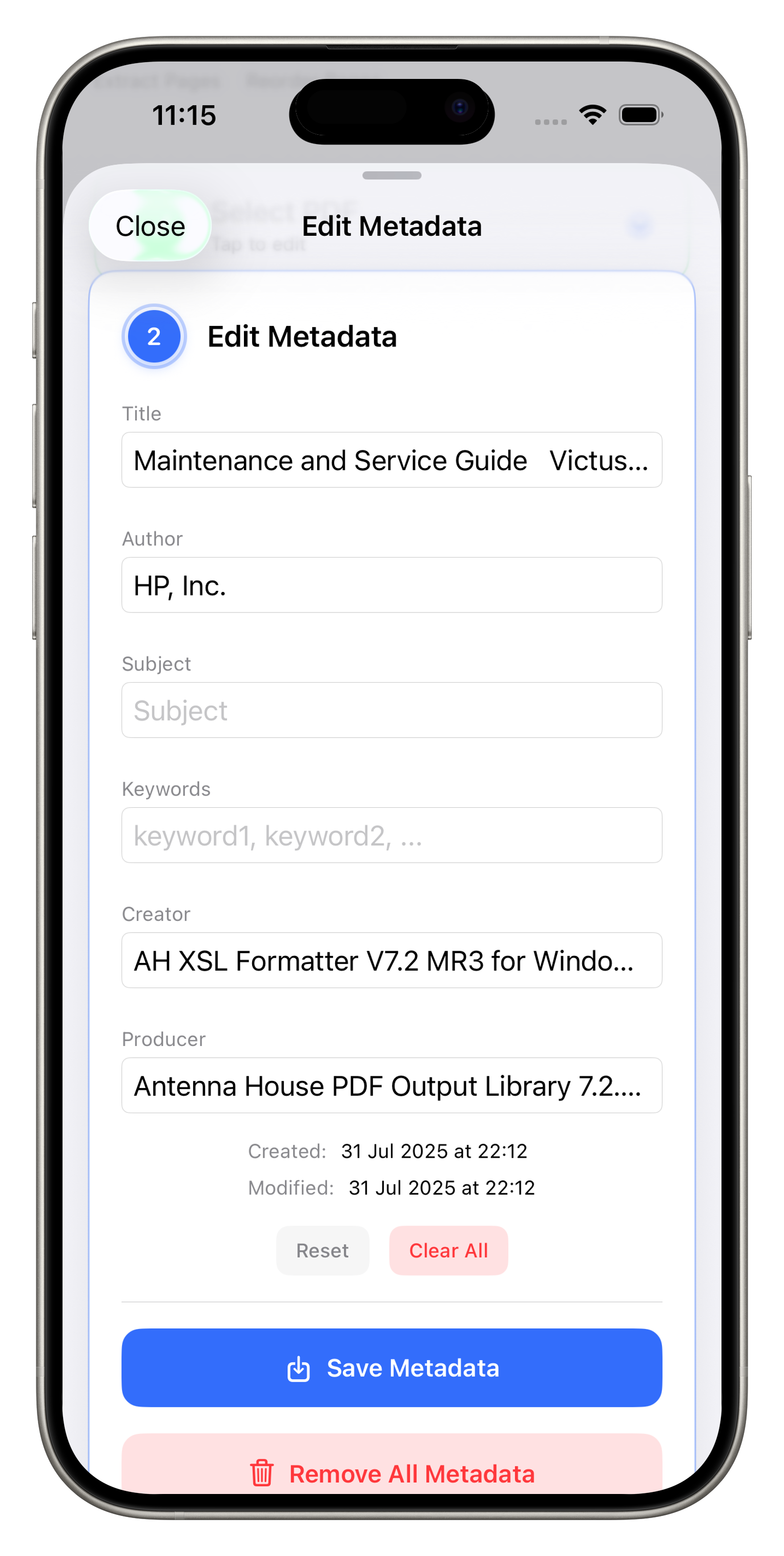
Document Properties
The Edit Metadata tool lets you view and modify:
- Title - The document title
- Author - Document author name
- Subject - A brief description
- Keywords - Searchable keywords
- Creator & Producer - Software used to create and produce the PDF
- Dates - View created and modified timestamps
Use Clear All to remove all metadata, Reset to restore original values, or Remove All Metadata for a complete privacy-focused strip of all properties.
Settings & Preferences
Customize PDF Toolbox to suit your workflow.
App Settings
- Appearance - Choose between Light, Dark, or System to match your device settings
- Language - Choose from 7 languages or follow your device's system language
- Save Location - Set your default save location to "On My iPhone" for local storage, or "iCloud Drive" for cloud sync across devices
- Storage - View cached files and their size. Tap "Clear Cache" to free up space - temporary files, framework caches, and thumbnail data are safely recreated as needed
- About PDF Toolbox - View app version, privacy policy, and find a way to support development
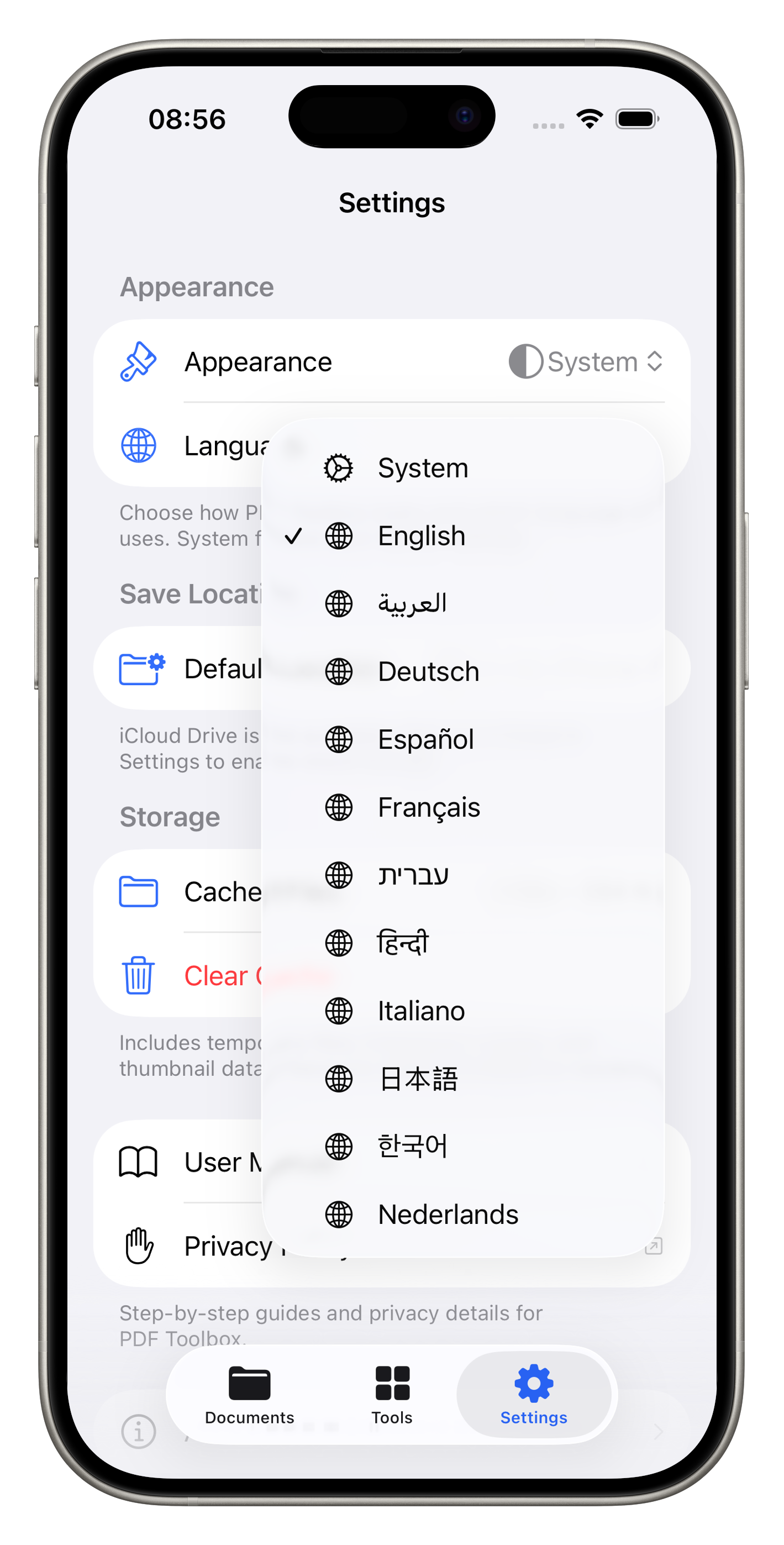
7 Languages
PDF Toolbox is fully localized in 7 languages. Tap Language in Settings to switch:
- English, Français, Deutsch
- 日本語, 한국어, 繁體中文, 简体中文
Choose System to follow your device language automatically. After changing the language, close the app and reopen it to apply.
Platform Support
PDF Toolbox is a universal app with a native, optimized interface on every platform.
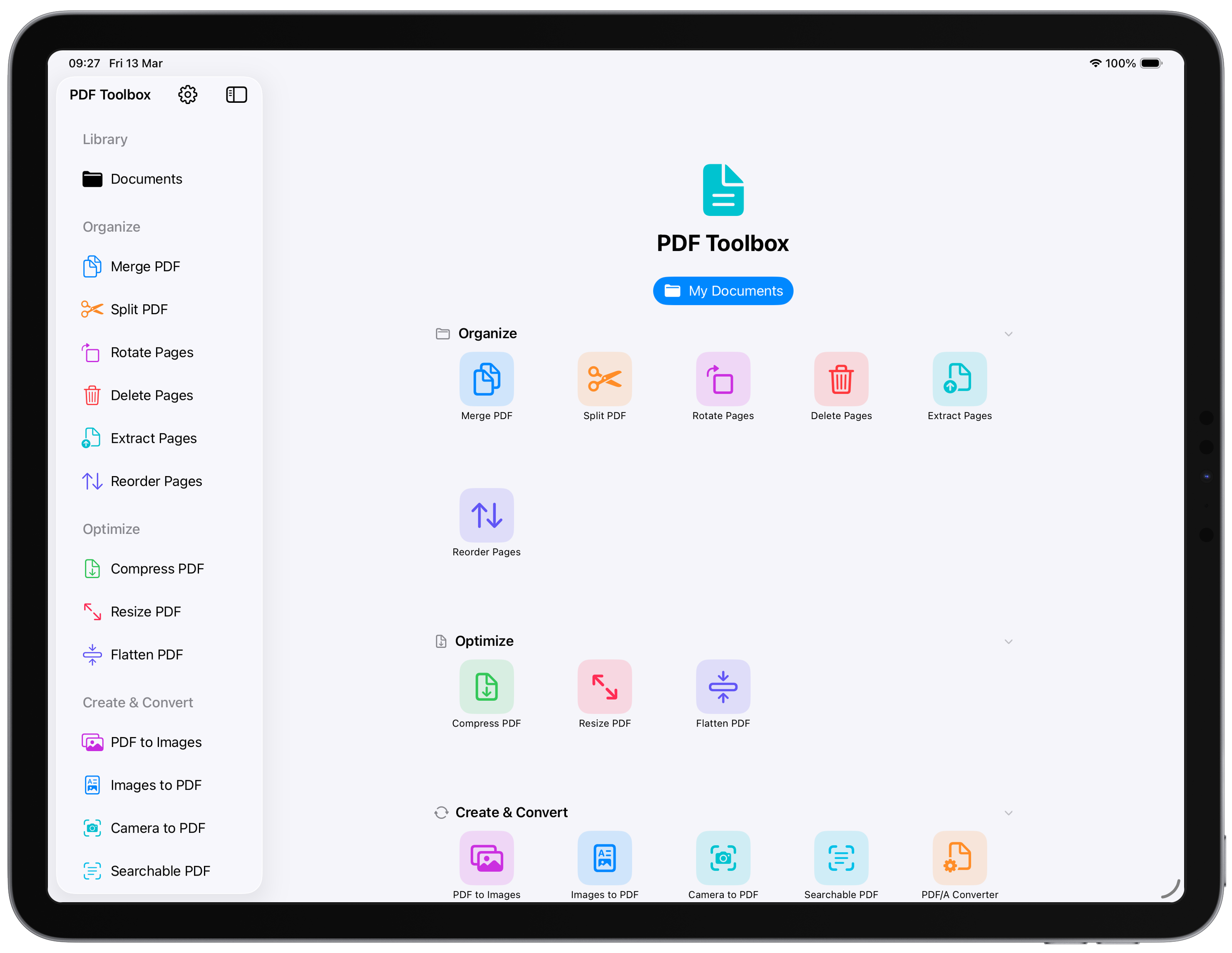
iPad
The sidebar lists every tool. The home screen handles file intake (drop, Browse, Scan), Continue Reading from your last session, and Recent Activity with Run Again. Requires iPadOS 18.1 or later. Connect a keyboard to use the same tool shortcuts as Mac.
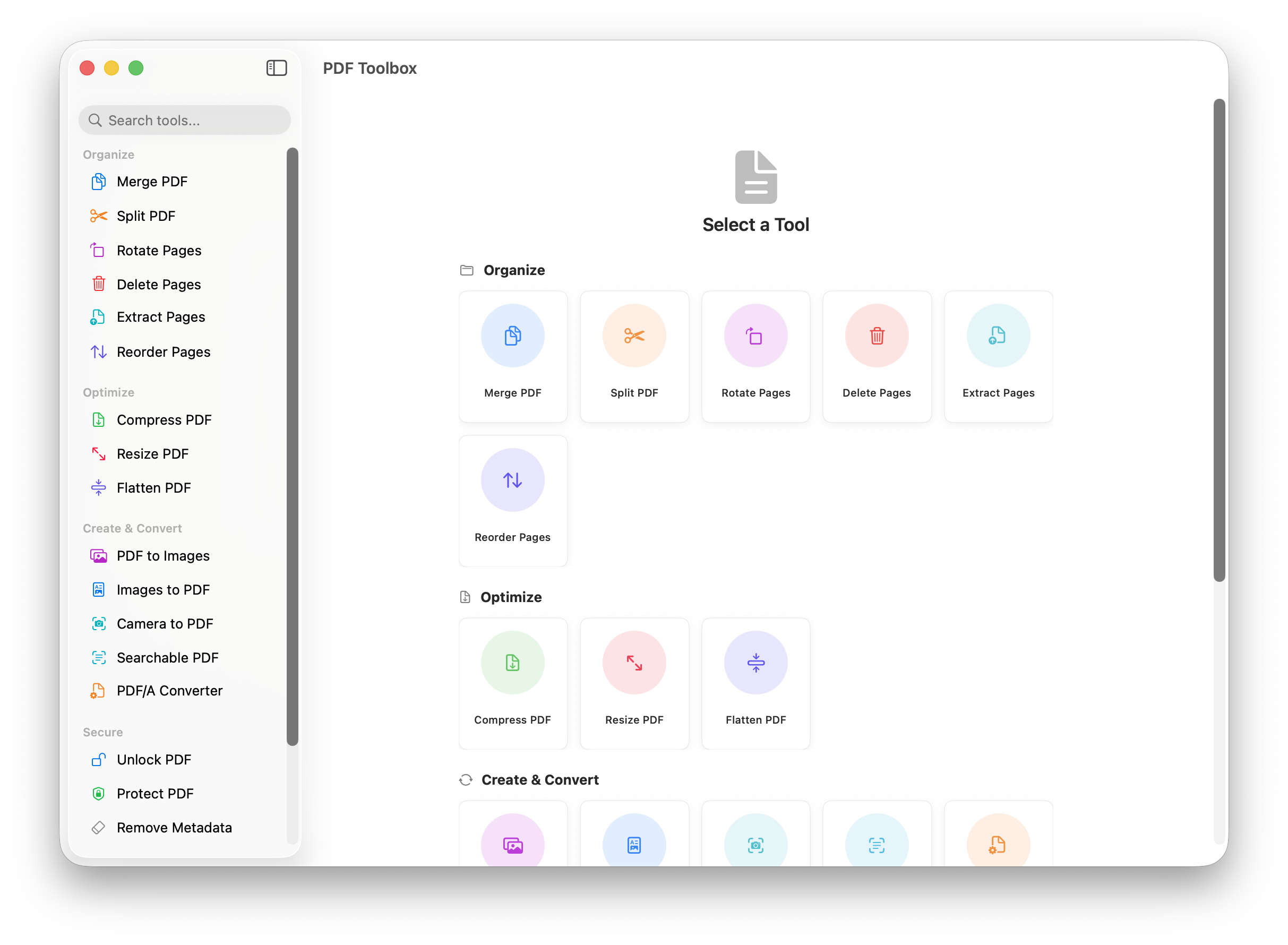
Mac
The sidebar is the tool catalog. The home screen accepts dropped PDFs, opens a chooser for the right tool, and shows recent runs with Run Again. Every tool has a keyboard shortcut. Requires macOS 15.1 Sequoia or later.
Keyboard Shortcuts
All 22 PDF tools have shortcuts on Mac and on iPad with an external keyboard. iPhone has no global shortcuts.
| Action | Shortcut |
|---|---|
| Merge PDF | ⌘ ⇧ M |
| Split PDF | ⌘ ⇧ S |
| Rotate Pages | ⌘ ⇧ R |
| Delete Pages | ⌘ ⇧ D |
| Extract Pages | ⌘ ⇧ E |
| Reorder Pages | ⌘ ⇧ J |
| Compress PDF | ⌘ ⇧ K |
| Resize PDF | ⌘ ⇧ Y |
| PDF to Images | ⌘ ⇧ I |
| Images to PDF | ⌘ ⇧ P |
| Camera to PDF | ⌘ ⇧ C |
| Searchable PDF (OCR) | ⌘ ⇧ O |
| PDF/A Converter | ⌘ ⇧ A |
| Unlock PDF | ⌘ ⇧ U |
| Protect PDF | ⌘ ⇧ L |
| Remove Metadata | ⌘ ⇧ T |
| Redact PDF | ⌘ ⇧ B |
| Add Watermark | ⌘ ⇧ W |
| Add Page Numbers | ⌘ ⇧ N |
| Sign PDF | ⌘ ⇧ G |
| Flatten PDF | ⌘ ⇧ F |
| Repair PDF | ⌘ ⇧ X |
Privacy & Security
Your documents never leave your device.
PDF Toolbox processes everything on-device using Apple's native frameworks. Zero analytics, zero telemetry, zero tracking. No internet connection is required for any feature. For full details, see the Privacy Policy.
Recent updates
Highlights from recent releases. Full history is in the in-app What's New sheet.
- Improved scanned OCR with Scanned Document preprocessing and scan resolution
- Merge PDF file order via drag handles in the file list
- Keyboard shortcuts for all tools on Mac and iPad
- Viewer redact: select text in Annotate / Redact and save to apply
- macOS and iPadOS home screens with drop intake and Recent Activity
- iPhone Tools tab: Recent Activity sheet with Run Again from the toolbar
- Documents library loading, empty import actions, and select mode accessibility
- Viewer search, print, zoom readout, and save progress feedback
- Repair and processing reliability improvements for large or damaged files
Tips & Tricks
Get the most out of PDF Toolbox with these helpful tips.
Quick Actions
Long-press any document in the Documents tab to access context menu tools like compress, rotate, and sign without switching to the Tools tab.
Search Tools
Use the search bar in the Tools tab to quickly find any tool by name. Type "compress" or "sign" to jump straight to what you need.
Organize with Folders
Create folders in the Documents tab to keep your processed files organized. Move files between folders via the context menu.
Recent Activity
On iPhone, tap the clock icon in the Tools tab toolbar to see recent successful runs and tap Run Again to reopen a tool.
Collapse Categories
Tap any category header in the Tools tab to collapse or expand it. This helps you focus on the tools you use most.
Need Help?
If you have questions, feedback, or need support, you can reach the developer on X: